
Wintomic Login and Account Registration
Get back to your games, check a bonus or follow a payment through one personal account. Wintomic login connects you with the profile you already use on mobile and desktop. New players can register first, while existing members can recover access without opening another account. Keep your registration details accurate from the start so identity and payment checks can be completed against the same information.
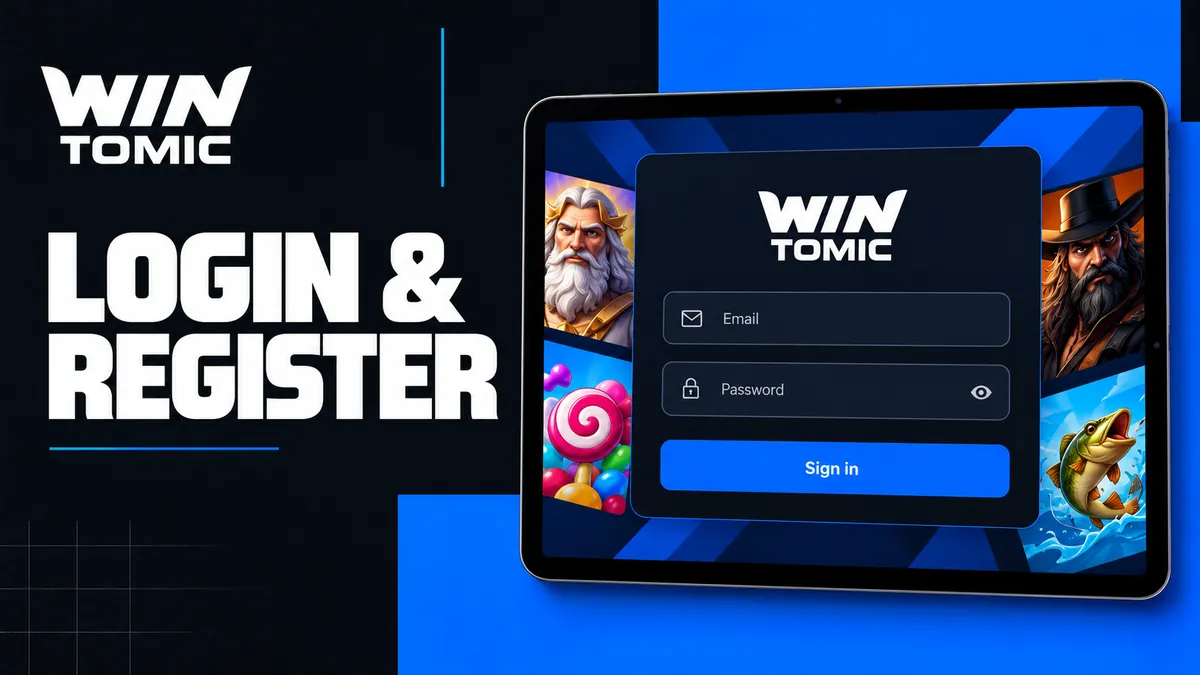
Signing In to Your Wintomic Account
For Wintomic login, open the sign-in option and use the credentials or registration service linked to your profile. Choosing a different route does not necessarily identify the same account. If you originally registered through a connected service, keep access to that service as well as your contact email.
Before entering credentials, make sure you are on the intended casino address. A message promising an extra reward is not a reason to share your password with another person. Passwords and one-time access codes should remain private throughout registration, support enquiries and payments.
Once signed in, check the account and balance before starting a game. On a shared device, a saved session may belong to someone else. Each player needs their own profile, personal details and payment methods.
Creating Your First Wintomic Profile
Register with Wintomic once and use that profile for the casino, sports betting and account transactions. Multiple devices do not require multiple registrations, and a new email should not be used to restart a welcome offer. The platform’s rules allow one personal account per player.
Prepare details that can be matched during account checks:
- An email address and phone number you control.
- Personal information matching your identification.
- Payment details belonging to you.
This preparation helps connect the profile, documents and payment ownership before the first withdrawal.
Choosing a Registration Method
Use the Wintomic registration route and complete the required fields. Email registration and connected-service access are different sign-in routes, so remember which one you choose before closing the first session.
Keep the process straightforward:
- Select registration and choose your sign-up method.
- Enter your own contact and personal details.
- Set a private password when the chosen route requires one.
- Complete any requested contact confirmation.
- Retain the same profile for future sign-ins and payments.
Registration does not automatically mean that identity verification is complete. A confirmed email demonstrates control of that contact address; it does not establish the identity of the person making a withdrawal.
Contact Details and Account Currency
Use an email and phone number that will remain available to you. Temporary contact details make recovery harder and can interrupt confirmation messages. If your details change, arrange the correction through the account process or support rather than creating a replacement profile.
Read the Wintomic account currency selection carefully before funding the account. A bonus amount published in USD does not mean every account or transaction is denominated in dollars. Compare the currency shown in the profile with the amount and currency requested by the payment provider.
Recovering a Forgotten Password
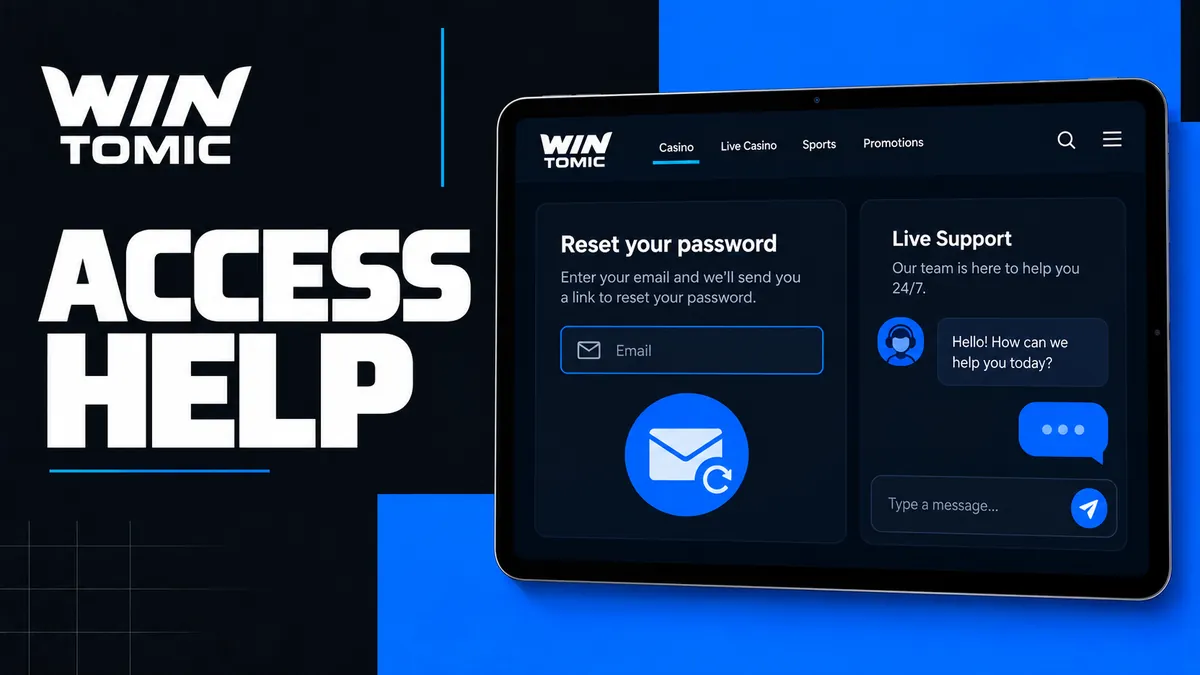
Use the Wintomic password recovery route associated with the existing account. Supply the registered contact information and follow the recovery instructions sent to you. Check the relevant inbox and spam folder before repeating the request.
If several reset messages arrive, work from the latest valid instructions. Do not forward recovery messages or codes to a person offering to finish the process for you. Once access is restored, use a password you do not share with other services.
Contact Wintomic support when the registered email or connected service is no longer accessible. Explain the loss of access clearly. Support may need to establish account ownership before changing contact information, so opening another profile is not a useful substitute for recovery.
Identity Checks Before Financial Operations
Verification helps confirm that the person using the profile is the registered account holder. The KYC policy provides for checks at the first withdrawal, when cumulative deposits exceed USD 10,000 and when additional risk checks are required. A request can therefore arise even if you have signed in successfully before.
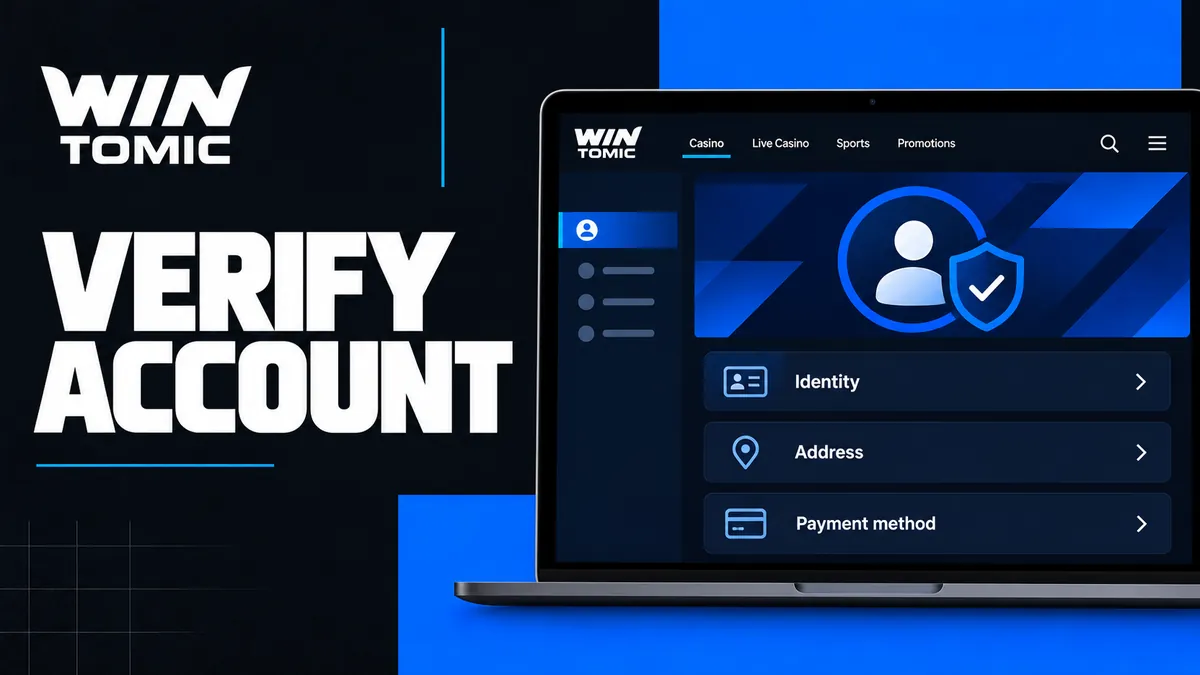
Keep the verification response consistent with your profile:
- Use information matching your Wintomic account.
- Explain any registration error through the designated correction process.
- Identify the detail that needs correction instead of submitting conflicting versions.
Send the requested information through the designated verification process so it can be matched to the same personal profile.
Identification and Recent Address Evidence
Wintomic verification can require identification and proof of address. Address evidence should be dated within the preceding three months. Submit clear, complete images through the requested channel so relevant details can be read without guessing.
Avoid cropped edges, glare and blurred text. A photograph taken on a phone can be suitable when it clearly captures the requested information. Use your own evidence and follow the specific document request rather than uploading unrelated records.
Selfie, Video and Additional Checks
A selfie or video check can be requested to connect the person using the account with the identification supplied. Such a request is separate from confirming an email address or phone number. Completing a contact promotion does not replace identity checks.
Additional evidence can form part of the review:
- Source-of-funds information may be requested under the KYC policy.
- Submit the information relevant to the request through the designated verification process.
An unanswered request does not amount to approval.
Confirming Ownership of a Payment Method
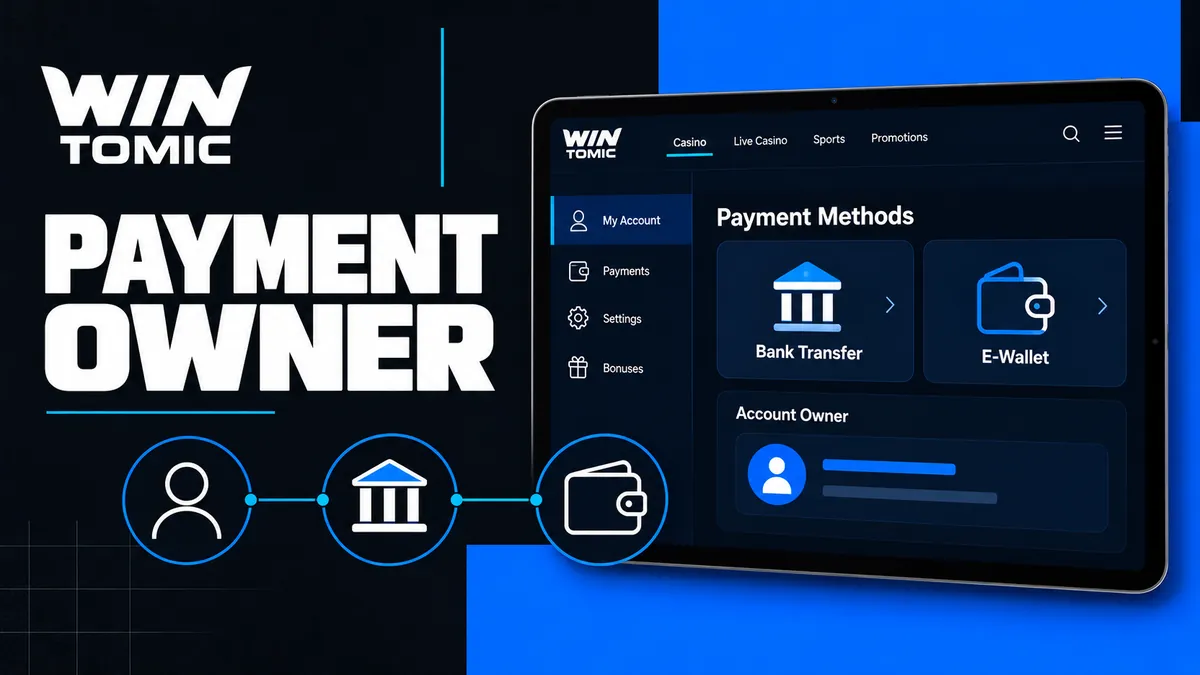
Wintomic deposits and withdrawals must use payment methods belonging to the account holder. A successful payment does not remove the requirement to establish ownership when requested. Names and account details need to correspond with the player’s profile.
| Check | What it establishes | Practical preparation |
|---|---|---|
| Contact confirmation | Access to the registered email or phone | Keep the contact available |
| Identity verification | Identity of the registered player | Clear identification images |
| Address check | The requested residence information | Evidence dated within three months |
| Payment ownership | Ownership of the funding or payout method | Matching personal payment details |
| Source-of-funds review | Information about the origin of funds | Evidence relevant to the request |
Using a friend’s wallet or a relative’s bank account can create an ownership mismatch. Choose your own payment method from the beginning. Never send a password or full access credentials as evidence of ownership.
One Account Across Mobile and Desktop
Continue with the same Wintomic casino profile when moving from a phone to a computer. The platform advertises installation options for Android, iOS and macOS, while browser access provides another way to reach the account. Changing the device does not create a new player or reset a promotion.
Account information and verification belong to the profile. A different device alone is not a reason to register again, although further security checks can still be requested. Keep access to the contact details used for sign-in when travelling or replacing a phone.
Before leaving a shared computer, sign out and remove saved credentials you did not intend to retain. A private phone should also have a screen lock, especially when it holds account recovery messages.
Help with Access and Account Messages
Identify what stops you from reaching your Wintomic account. An incorrect password, an unavailable recovery email and a pending verification request require different actions. Describe the exact message instead of reporting every account issue as a login failure.
Support is available 24/7 at [email protected]. Keep the registered contact information and a concise description ready. Never include your password or one-time access codes in the enquiry.
Useful Details for Resolving an Access Problem
Give support enough information to locate the issue without sending unrelated personal records. The time of the attempt, device and wording of the message are usually more useful than a long account of every previous session.
| Situation | Details to provide | Next step |
|---|---|---|
| Password is forgotten | Registered email and recovery issue | Use the recovery route |
| Contact access is lost | Which registered contact is unavailable | Request ownership assistance |
| Verification is pending | Requested check and submission date | Respond within the existing process |
| Deposit is missing | Transaction reference, amount and date | Report the specific payment |
| One game fails | Game name, time and error | Keep the round reference |
A reply from support is different from completing a verification or payment review. Follow the instructions for the affected operation and avoid sending several conflicting versions of the same request.
Protecting a Single Personal Profile
Keep your password private, use a different password from other services and secure the email that receives recovery messages. These habits protect access to the account even when you move between devices.
Wintomic describes encryption of information in transit and at rest. Account security also depends on how you handle credentials and shared devices. A person who has your unlocked phone or email access may be able to read recovery instructions, so protecting those services matters alongside the casino password.
Review unexpected account or payment messages before acting. If something appears unfamiliar, contact support through the established channel. Do not make a deposit, send cryptocurrency or disclose an access code to someone claiming that it is necessary to unlock the account.
Account Closure and Time Away from Play
Contact Wintomic support when you want to close the profile or arrange self-exclusion. These are account actions, distinct from closing a browser window or deleting an app. Removing an installation leaves the underlying profile and its records in place.
Self-exclusion applies to the account:
- The minimum exclusion period is six months.
- The account cannot be reactivated during the selected exclusion period.
Use this process rather than trying to create a second registration.
For ordinary sessions, decide your budget and stopping time before playing. Access to a bonus or an unfinished wagering requirement should not become a reason to spend beyond that plan.
Frequently Asked Questions About Wintomic Login
Yes. Use one personal profile across devices. A new installation or browser does not require another registration and does not restart the new-player welcome package.
Contact support to recover the existing profile and explain which registered contact is unavailable. Complete the requested account-ownership checks before changing contact information. Do not create another account to bypass recovery.
No. Email confirmation establishes access to that address. Identity verification can require identification, address evidence and other checks related to the registered account holder.
You have 30 days to supply requested verification information under the KYC policy. This is the response deadline, not a statement that every verification review takes 30 days.
No. Payment methods must belong to the account holder. Use your own account or wallet so payment ownership can be matched to the personal profile.
No. The standard welcome package applies to the first four qualifying deposits, while contact-verification promotions reward the relevant confirmation. The installation reward is a separate Points promotion, so registration alone does not activate every offer.
No. Uninstalling removes access from that device. Contact support for account closure or the self-exclusion process when you want an account-level restriction.